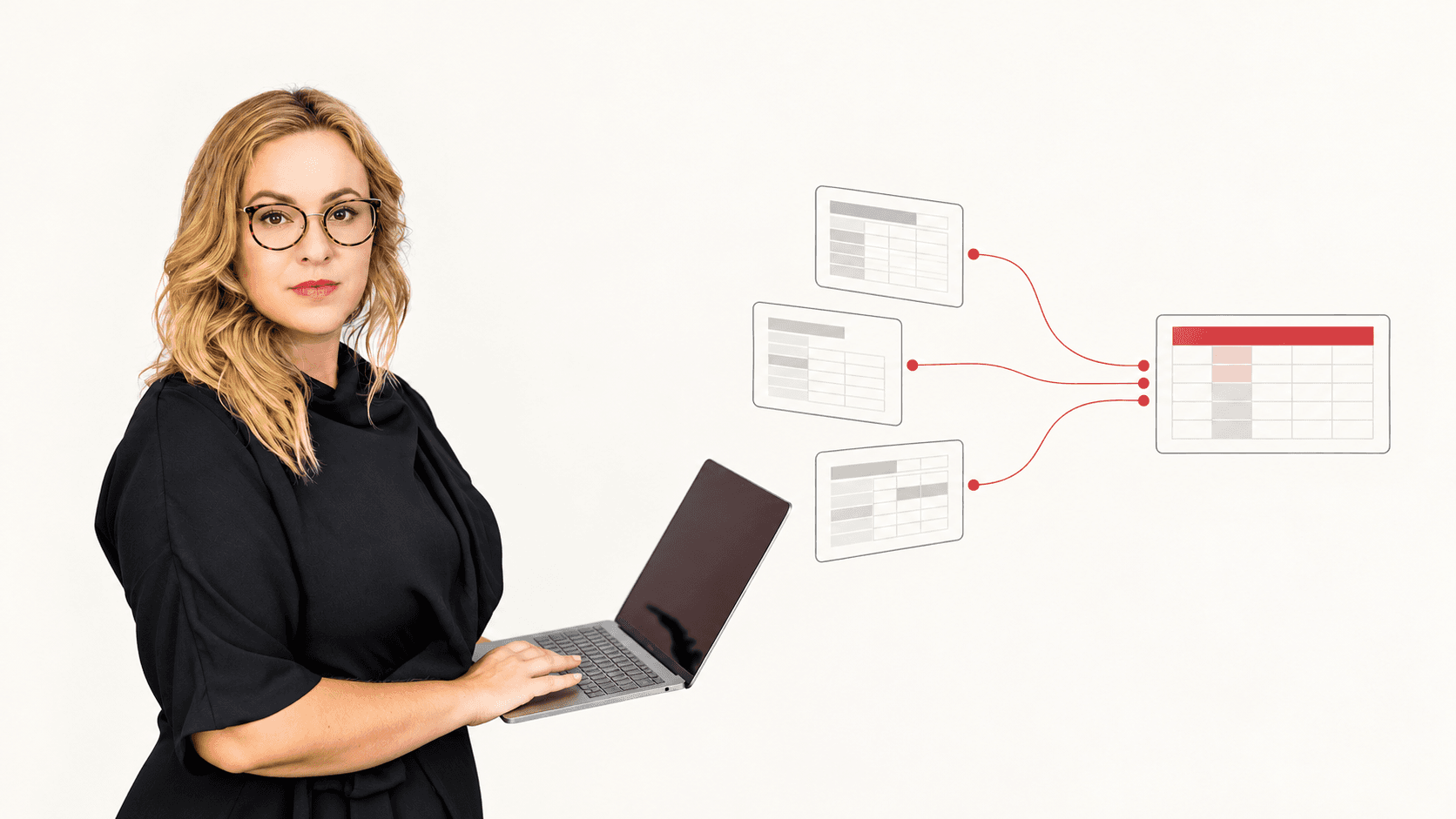
"Which stores stopped buying after we changed distributors?" sounds like a simple question. In VIP iDIG the answer often ends up in a spreadsheet that someone builds by hand. We worked through this with Asahi Beer USA. This article sums up what we learned, for marketing and sales teams at suppliers who use iDIG every day.
What VIP iDIG is, and what it already does well
VIP (Vermont Information Processing) makes software for suppliers, distributors and retailers in the US beverage industry, and people in beer, wine and spirits call it the industry standard. iDIG is VIP's reporting and analytics product. Distributors send their sales into VIP, most of them daily, and suppliers read the results in iDIG.
iDIG already covers a lot. You can view sales and depletions by market, territory, chain or single account and drill down to a package or SKU. VIP has also added AI summaries of reports. In our experience, a few features are worth knowing before you export anything:
Package Size groups items by pack, which already joins old and new items of the same pack size.
Selection Sets save a filter, so you can reuse a group of items in other reports.
Filter and hide: select several items, untick Show, and iDIG sums them into one line per store. This works for one group per report.
Dashboards, charts and Excel export are built in.
Before you build anything outside iDIG, check whether one of these already answers your question.
Where suppliers get stuck
The trouble starts with questions that span several years or several changes at once.
One product, many codes
Every distributor keeps its own item numbers. When a supplier changes a product code, a pack or a name, the break happens once per distributor, each on a different date, because each distributor switches when its old stock runs out. Some distributors map the old item to the new one. Most do not. In a report, the same product then shows up as several items, and a move from small to large packs looks as if the small pack collapsed.
Distributor changes
When a store moves to another distributor, it is hard to compare it with its own past, and some stores drop out along the way. The same distributor can also appear under two codes that differ by one letter.
The export row limit
iDIG exports have a row limit. A large state at store level may not come out in one file.
Questions across several periods
iDIG compares periods well. In our experience it does not give you a per-store view of who kept buying, who stopped, who came back and who is new across several periods. It also does not show several product groups side by side as one dimension.
Large companies have whole teams for this. At one large brewer, for example, a team took data dumps from VIP into Power BI. Smaller teams do it by hand in Excel.
Before you export: three settings that save a rework
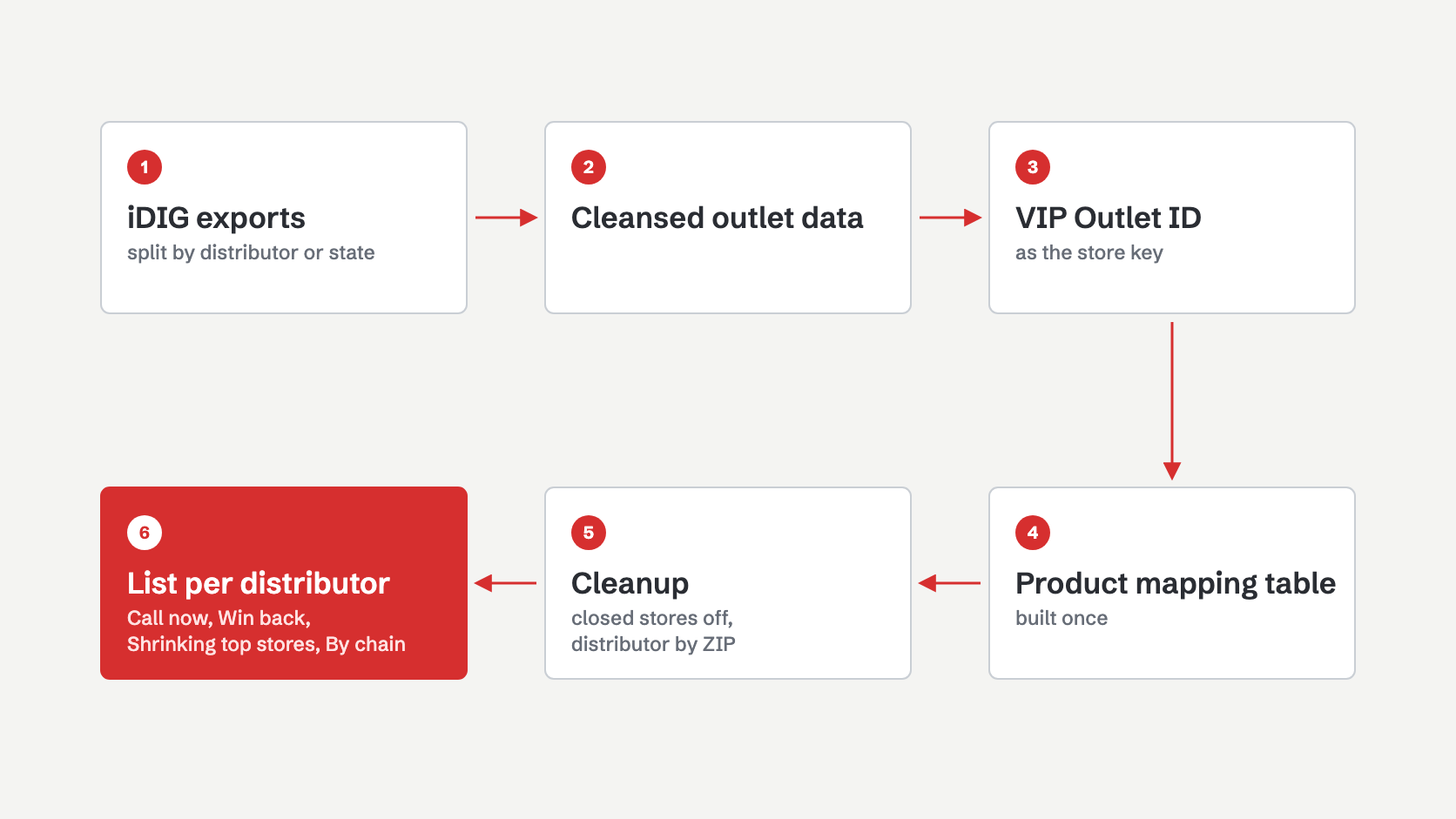
Ask about cleansed outlet data. Check with whoever runs VIP on your side whether your iDIG reports should use the cleansed data option. In our project, moving to cleansed outlet information merged duplicate stores, and the counts shifted a little.
Use VIP Outlet ID as the store key. It stays the same when a store moves to another distributor, so it is the safest way to follow one store over the years.
Split big exports. If a report hits the row limit, split it by distributor or by state and join the files afterwards. Keep the same columns and periods in every file so they join cleanly.
Build the product mapping table once
The most useful file is often a simple table that says which item codes are the same product, at every level you report on: brand, flavor, pack and selling unit. Someone who knows the brand has to check it, because some links are judgment calls.
Once the table exists, every later question gets easier, and you can give the cleaned data to Copilot or another AI tool without it adding up broken items. At Asahi, the brand team already kept such a grid. Start from what you have.
From export to a list a distributor can work with
For most suppliers the goal is a list to hand to a distributor: these stores used to buy, now they buy less or nothing, please follow up. These parts worked for us.
Columns: account, address, ZIP, VIP Outlet ID, chain, store type, cases per year, last purchase month and what the store used to buy.
Tabs: Call now, Win back, Shrinking top stores (the biggest stores from a base year that now buy less) and By chain.
Potential: the store's best recent year minus what it has bought so far this year, multiplied by an average price per case. It is a rough estimate, since prices differ by product.
Cleanup before sending: take off stores that VIP marks as closed. Assign stores of distributors that are no longer active to the distributor serving their ZIP today, and check that with your team, since territories can work differently.
Copilot prompts: a sheet of ready-made prompts helps people ask follow-up questions about the list. At Asahi, the team used one state's list in Copilot to plan sales visits within a 30-mile radius.
Stay inside VIP's rules
VIP publishes an Automated Access Policy, last updated on April 14, 2026. It allows automated access only through methods that VIP "provides, documents, or expressly enables or approves, including APIs, SDKs, CLIs, webhooks, data connectors, and similar interfaces". It also notes that "not all applications offered via the Platform include Approved Automated Methods to access the applications".
Among the things the policy prohibits are "Use of automated bots, spiders, crawlers, or other methods to access the Platform outside of Approved Automated Methods" and "Deploying AI agents that take autonomous action on behalf of users without VIP’s prior written consent".
Export by hand, or ask VIP which approved methods exist for your account. Everything in this article works with files you export yourself.
Example: Asahi Beer USA
Asahi Beer USA, part of Asahi Group, went through many changes in products and distributors in a short time. Its marketing team needed lists of stores that had stopped buying, to take to their distributors. We matched the stores on VIP Outlet ID, built store lists for four US states in the South and on the West Coast, one list per distributor, and added a small tool that runs in the browser so the team can update the lists on its own. The client now works with the files without us.
Read the full case
Where to start
If iDIG answers your daily questions but not the ones across years and changes, start with one question you cannot answer today. Tell us which one it is and which exports you already have. We will tell you what can be done inside iDIG and what needs a mapping table or a small tool of your own.